Reference
Schedule
A schedule is a workflow with a time on it. One entry names several automations, in the order you want them, and the profiles each should run on — “these three, every weekday at 9” is the shape the Schedule tab exists for.
On this page
A schedule is a workflow with a time on it
One entry names several automations, in the order you choose, and the profiles each should run on. It is a workflow rather than a list: the tab exists for “these three, every weekday at 9”, which is a sentence about all three of them at once.
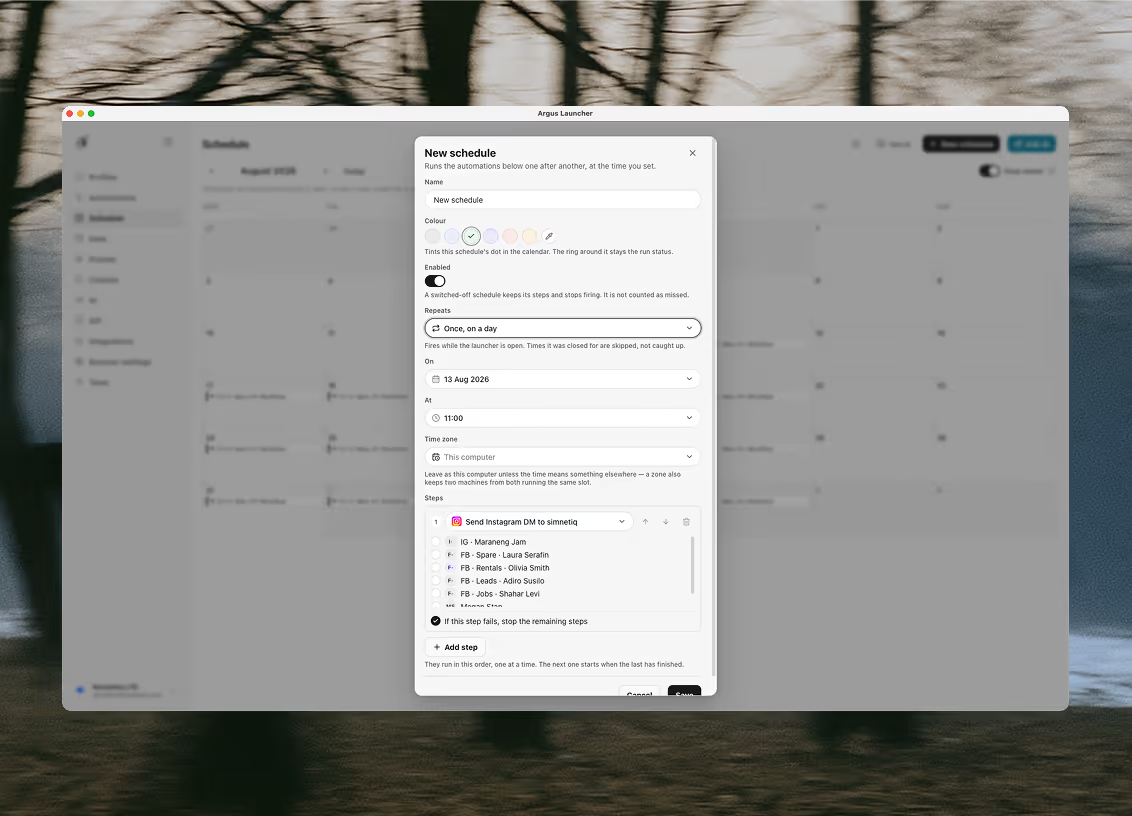
The automations in an entry run one at a time: the next starts when the last has finished. That is the whole reason to group them rather than schedule each on its own — a scrape can hand its rows to the step that reports them, because the reporting step did not start until the scrape was done.
Each step names one automation and the profiles it should run on, and carries its own “if this step fails, stop the remaining steps”. Leave it on and a workflow built on yesterday's rows does not go ahead without them; turn it off for a step whose failure the rest can survive.
A single automation repeating on its own is simpler set inside that automation, under Run on a schedule. Those appear in the calendar too, drawn as dashed pills and read-only there — the entry that owns them is the automation itself. An automation’s own schedule is the smaller tool, and the right one when there is nothing to put in order.
Repeats, windows and zones
An entry repeats one of three ways, and the dialog offers exactly these:
Set an entry to fire once on a day, every day, or on the weekdays you pick. A repeat runs until you stop it unless you give it a Starts and an Ends day, which is how you say “weekdays, but only next week”.
An entry keeps its own time zone, or takes this computer's. Naming one is worth more than politeness to travel: a slot is claimed under the entry's own reading of the clock, so two machines in two countries agree on which 09:00 this is and the second stands down. Left as this computer, each reads 09:00 as its own — which is what you want when the entry belongs to that desk, and not what you want when it belongs to the workspace.
When it actually runs
Nothing here fires when Argus is closed. A time the launcher was closed for is skipped rather than caught up: a scrape due at 03:00 firing when you open the laptop at 09:00 is a surprise, not service. Those slots show in the calendar as missed, which is a fact about the day rather than an error.
Keep awake, in the Schedule header, asks macOS not to idle-sleep while the launcher is running, and it is what makes an overnight calendar work at all. It stops the idle timer and nothing more: the screen may still sleep, a closed lid still sleeps, and a machine you put to sleep by hand stays asleep. The operating system wins those.
If two computers are signed into one workspace, only the first to reach a slot runs it. The other sees the claim and steps aside, so a shared calendar does not double-run because two people happened to leave the app open.
Reading the calendar
Each day cell shows its pills: the time, the name, a dot in the schedule's own colour, and a ring that says what happened — upcoming, running, finished, partly failed, failed or missed. Partly failed is its own outcome because it is its own thing: the entry did every step it could and can tell you which one it could not.
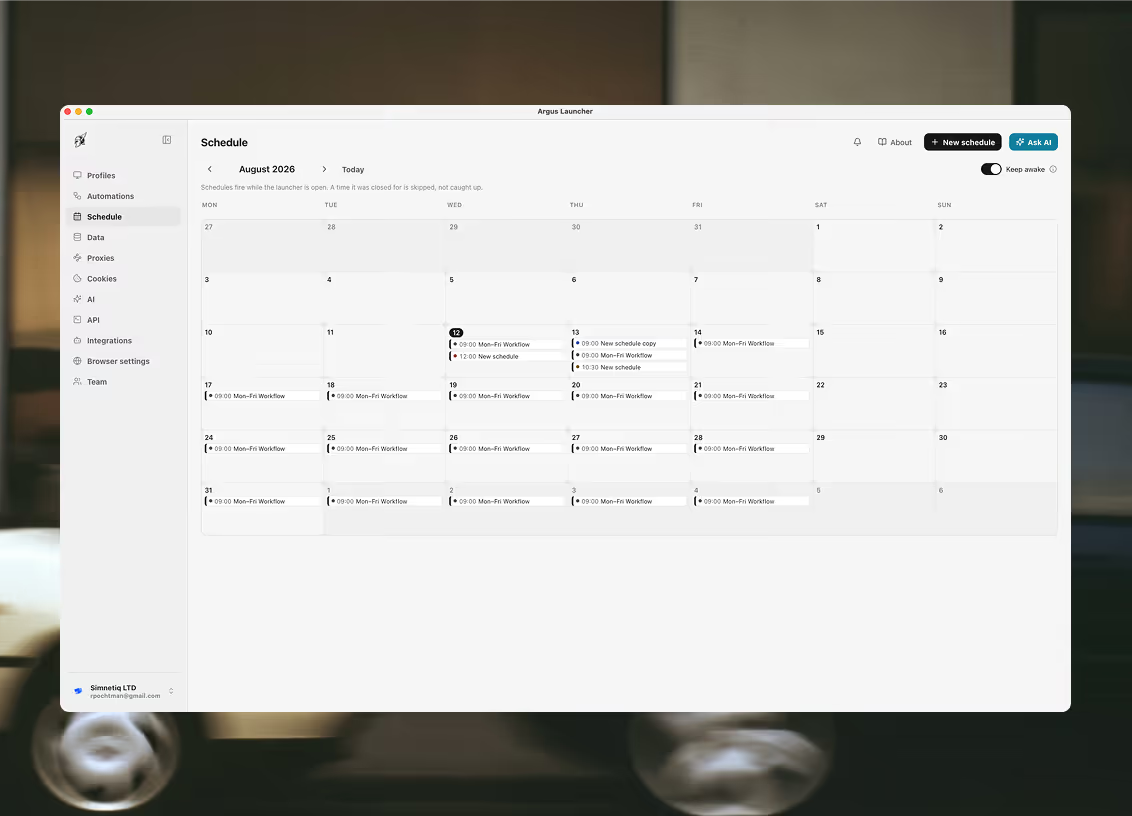
Dashed pills are automations firing on their own schedule. They are drawn here so the day is complete, and they are read-only here for the same reason they are dashed — the entry that owns one is the automation itself.
Click a day to see every step's outcome. Right-click a day or a pill to edit, copy, paste or delete without opening anything — a week you want to repeat next month is a copy and a paste rather than five dialogs.
Telegram for the day
What Telegram tells you about these days — as failures happen, or as one summary once the day is done — is set in Automations, under the notification bot, and any single day can disagree with it. One bot serves the whole workspace, but you link your own chat, so your subscriptions never ring a teammate's phone.
The schedule over the API
A schedule entry is an ordered list of automations with a time on it — a different thing from the schedule an automation carries itself, which runs that one automation alone. Entries fire only while the launcher is open: a time it was closed for is recorded as missed and skipped, never caught up. Occurrences is the record of what ran, not the plan for what will.
10 endpoints, every one of them fronted by an agent tool, so a calendar can be read and written by something other than the dialog. Creating, changing and deleting an entry needs a key with no folder scope; reading the calendar and its history does not.
/v1/schedule/entriesargus_list_schedule_entriesEvery scheduled workflow in the workspace/v1/schedule/entries/createargus_create_schedule_entryunscoped keyCreate a scheduled workflow or AI task/v1/schedule/entries/updateargus_update_schedule_entryunscoped keyChange a scheduled entry's time, steps, prompt, colour or enabled state/v1/schedule/entries/deleteargus_delete_schedule_entryunscoped keyDelete a scheduled workflow/v1/schedule/occurrencesargus_schedule_historyWhat the calendar actually ran over a range of days/v1/schedule/keep-awakeargus_keep_awakeWhether this computer is being held awake for the schedule/v1/schedule/keep-awakeargus_set_keep_awakeunscoped keyHold this computer awake so scheduled runs are not missed/v1/schedule/notificationsargus_schedule_notificationsWhether the signed-in user hears about their scheduled days/v1/schedule/notificationsargus_set_schedule_notificationsunscoped keyTurn the schedule's Telegram messages on or off/v1/schedule/dayargus_schedule_dayOne day of the calendarKeep awake and the day’s Telegram messages are on this list because they are per-machine and per-person settings that a run depends on — an agent asked to make tonight’s calendar work can check that this computer is being held awake rather than assume it.
Put a workflow on a day
The calendar is in the launcher, under Schedule. Build the automations first — an entry is an order you put existing ones in.