Reference
AI & the assistant
Ask AI opens the assistant beside whatever tab you are on. It knows which screen that is, answers from documentation built into the app, and acts through the same tools you would — on your own API keys, against your own workspace.
On this page
An assistant that knows which screen you are on
Ask AI, in the topbar, opens the assistant as a panel beside the tab you are already looking at — not a separate place you go to ask. It knows which screen that is, so “why did this one fail?” is a question about the row in front of you rather than one you have to describe. Typing @ mentions a screen or a skill by name when you want it looking somewhere else.
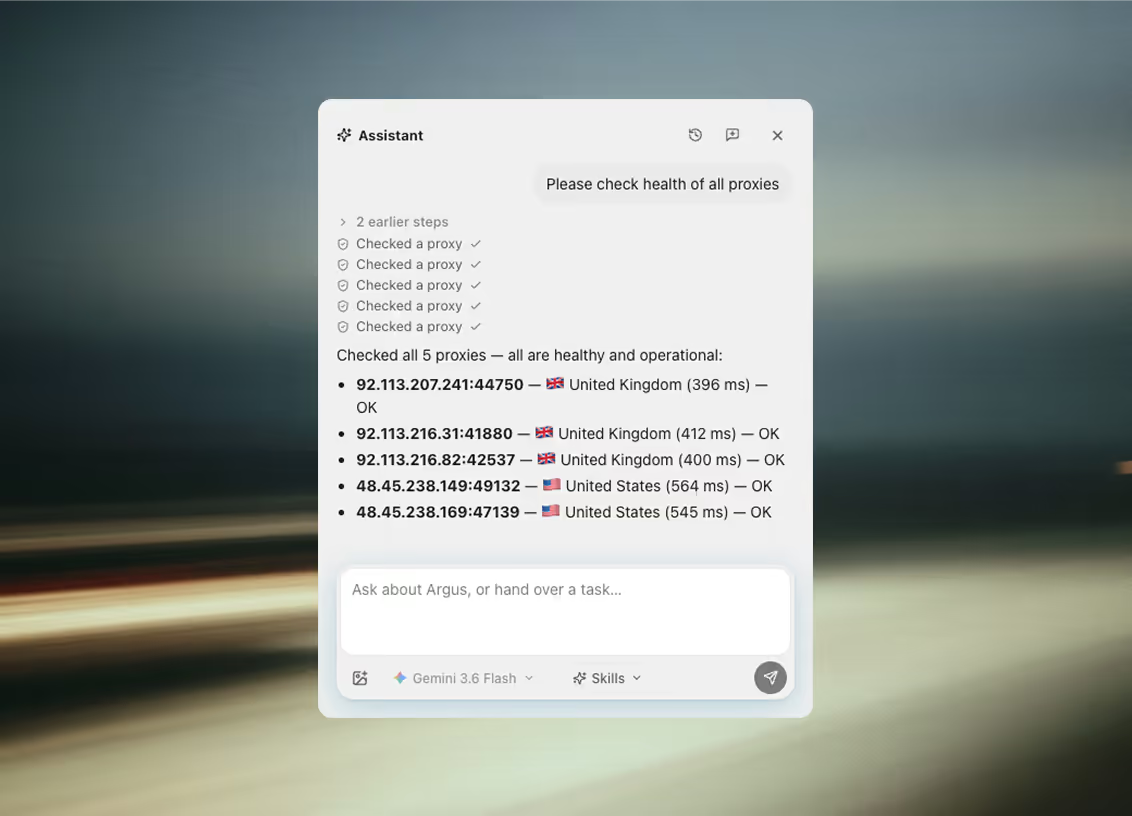
It acts rather than only advises. Ask it to check every proxy and it checks them, one call per proxy, and reports back with each result; ask it to tidy a dataset and it reads the rows and writes the corrections. Every tool call it made is listed above the answer, so what it did is visible rather than asserted.
Anything destructive or bulk shows an approval card before it happens. Deleting rows, launching a sweep across profiles, rewriting a skill — the card names what is about to happen and waits.
Ask it to build an automation and the editor opens with your request already handed to its builder, steps generating on the canvas. You are editing a tree from the first moment rather than reading a plan and then typing it in.
An empty chat offers four example requests to start from, led by the skill that covers the screen you are on. New chat and Chat history live in the panel’s header, and an earlier conversation is reopened rather than restarted — the assistant picks it up where it stopped.
A skill is a working brief
A skill is a working brief. When you ask for something, the assistant picks the skill whose one-line description fits the job and loads that brief before it starts — how to write an automation, how to read a dataset, what this app calls things. Loading it also swaps in that domain's tools, so an assistant working on proxies is holding the proxy tools and not all of them at once.
App guide
Explain Argus features, find where things live, and take the user there.
Projects
Group work that spans tabs into a project, and keep notes and rules about it.
Profiles
Create, organize, and launch browser profiles; explain fingerprint options.
Browser control
Drive a profile's browser: read a page, click, type, save what worked.
Proxies
Add, test, rename, and assign proxies to profiles.
Cookies
Explain cookie import/export and assign cookie sets to profiles.
Dataset organizer
Inspect, clean, dedupe, and edit datasets collected in the Data tab.
Automations
Explain, build, edit, delete and run automations from chat.
Schedule
Set up workflows that run at a time you pick, or when something happens.
Read mail, wait for a confirmation code or link, draft into an open compose card, and send once approved.
Session hygiene
Fix cookie sets and proxies shared across too many profiles.
Troubleshooter
Diagnose a real failure from its actual error text and name the fix.
Data collection
Plan how a site’s data lands in a dataset, and build the collector that fills it.
Crypto and Web3
Airdrop and faucet sweeps, wallet hygiene, exchange balances, and withdrawals that stop for a human.
Bulk profile checks
Check many profiles against a site (login vs feed vs suspended) and tag the outliers, dataset-first.
Fingerprint checks
Measure what a page inside a profile can see, score it against the declared identity, and tag the leakers.
Outbound email
Plan cold outreach: what to research, how many touches, the law, and which lists no ESP will carry.
Agent access
Connect Claude Code, Cursor or your own scripts to this workspace.
Workspace setup
Take a first profile end to end: proxy, cookies, launch, then scale.
Big jobs
Split large requests: repeatable work becomes a scheduled automation, one-off work goes to one subagent or several running at once.
Skill author
Write and edit the briefs this assistant works from.
Prompt architect
Turning a rough request into a precise, executable prompt before acting.
The built-ins cover the app's own jobs, from profiles and proxies through to the calendar and the workspace itself. Click a card to read the whole brief and the requests it is good at. Edit one and your version merges over it, stored on this machine and never uploaded, so a brief you tuned to your workflow stays yours.
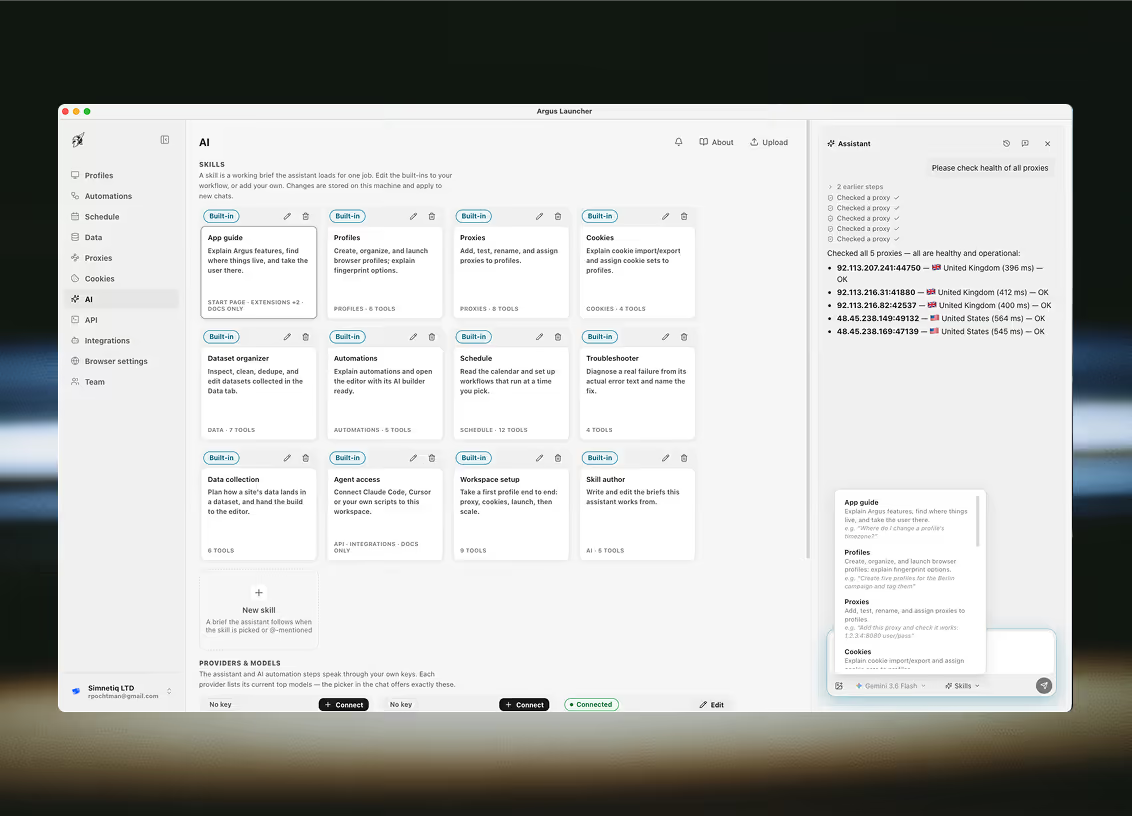
Upload turns a file you already have — a runbook, a style guide, the way your team words a first message — into a skill of your own.
A skill you write picks a tool pack — profiles, proxies, cookies, datasets or automations — and gets exactly the tools the matching built-in has. That list is fixed in the app, which is the point: a brief can choose what it reaches and can never invent a tool. A built-in’s own tools are code-defined and stay that way, so editing or uploading over one changes what it says, never what it can do.
Deleting is not the mirror image of saving. A skill of your own is removed; a built-in is reset to the brief it shipped with, which is also how one you hid comes back.
Your keys, your models
Argus does not sell inference and does not resell anyone else’s. There is no token balance in this product, no credit pack, and no meter — the assistant and every AI automation step speak through API keys you bring, straight from your machine to the provider you hold the account with.
What that means on the bill
- No AI credits to buy. Argus prices profiles, seats and automations — never tokens.
- No markup. You pay your provider directly, at their price, on your own account.
- Nothing routes through Argus. The request leaves this machine for the provider’s own endpoint.
- Local models need no key at all. LM Studio and Ollama answer from 127.0.0.1.
The assistant and every AI automation step speak through API keys you bring. Nothing routes through an Argus account, and there are no tokens to buy here: you pay your model provider, at their prices, and Argus is not in that transaction.
Connect a provider once by pasting its key, and it serves chats and automation steps alike. Its card then lists that provider's current top models, and the picker in the chat offers exactly those — a short current list rather than every snapshot a listing endpoint returns. Make default beside one picks what answers when a chat does not say.
Local and niche providers keep working through Automations, under Connectors, where any OpenAI-compatible endpoint can be pointed at by hand. Two of those run on your own machine and need no key at all.
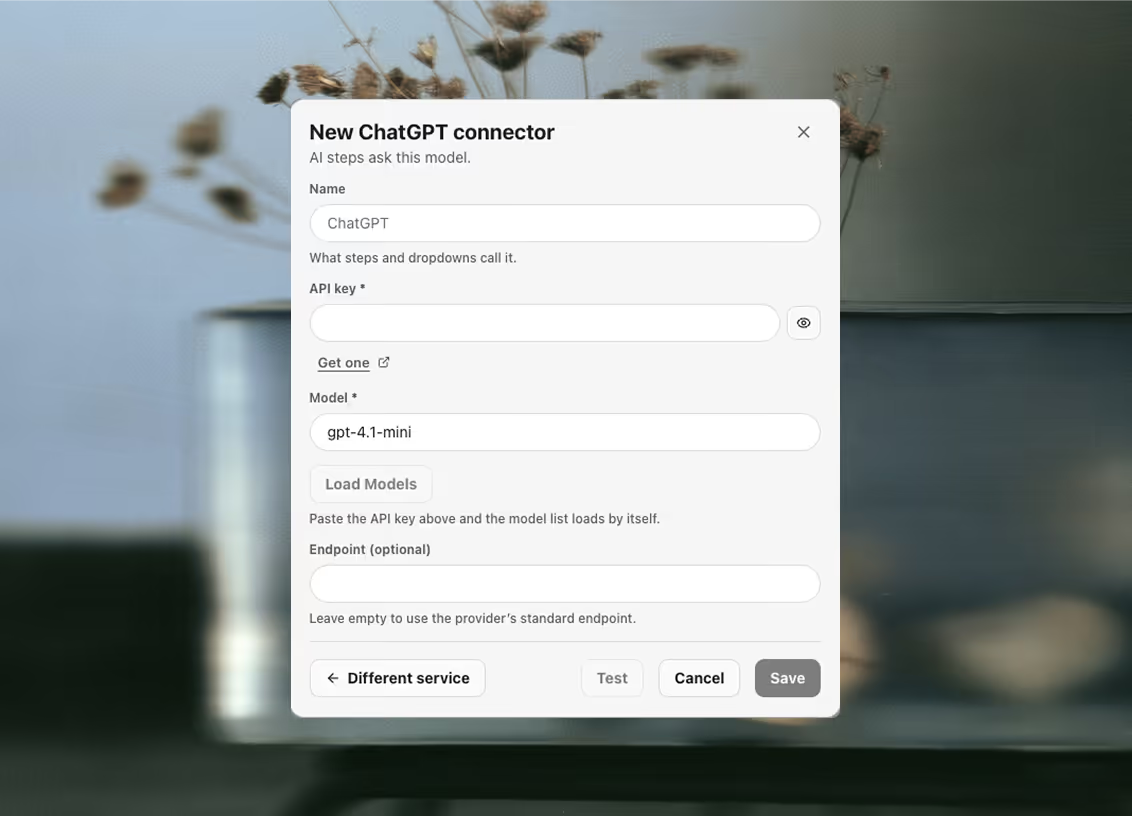
11 providers are curated, each carrying a short list of that provider’s current top models rather than every snapshot a listing endpoint returns. The picker in a chat offers exactly these:
Claude
- Claude Opus 5default
- Claude Fable 5
- Claude Sonnet 5
- Claude Haiku 4.5
ChatGPT
- GPT-5.5default
- GPT-5.4 mini
Gemini
- Gemini 3.6 Flashdefault
- Gemini 3.1 Pro
DeepSeek
- DeepSeek Chatdefaulttext only
- DeepSeek Reasonertext only
Kimi
- Kimi K2defaulttext only
- Kimi Vision
Mistral
- Mistral Largedefaulttext only
- Mistral Smalltext only
- Pixtral Large
Grok
- Grok 4default
- Grok 3 minitext only
Groq
- Llama 3.3 70Bdefaulttext only
- GPT-OSS 120Btext only
Qwen
- Qwen Plusdefaulttext only
- Qwen Maxtext only
- Qwen VL Max
OpenRouter
- Claude Sonnet 5default
- GPT-5.5
- Gemini 3.6 Flash
Together AI
- Llama 3.3 70B Turbodefaulttext only
- Qwen 2.5 72B Turbotext only
Make default beside a model picks which one answers when a chat does not say. Attaching an image is per-model, not per-provider: the composer’s attach button is enabled only for a model that accepts images, and a model you typed in by hand is treated as one that does not — a disabled button rather than a request the provider rejects halfway through.
Local and niche providers keep working, and keep working everywhere: LM Studio and Ollama on this machine, OpenRouter, Mistral, xAI, Together, Hugging Face, or any OpenAI-compatible gateway you point at by hand. They are added from Automations, under Connectors, and serve chats and automation steps the same as a curated one — see the AI connectors for the full list and what each one expects. The two local ones need no key, because there is no account on the other end.
Connector credentials are stored in your workspace, readable by anyone in it who can open the connectors list — and returned in full over the local API, so an Argus API key is equivalent to the credentials it can read. Argus masks them in its own interface, but that is a convenience rather than a security boundary — give a connector the narrowest key the service will issue.
Where the answers come from
The assistant answers product questions from documentation built into the app, not from whatever it remembers about browser automation in general. That library has three wings: one article per screen, answering what you can do here; concepts, answering how a profile, a proxy or a dataset behaves; and troubleshooting, which is organised by the exact error text you are looking at, with its cause and its fix.
The hard facts inside those articles — error messages, limits, statuses, the step list, the tab list — are generated from the modules the app actually runs rather than typed into prose. So the answer you get describes the build you have, and an article cannot quietly go stale while the behaviour it documents moves on. The articles ship with the app, which is also why asking a question costs no round trip to anyone’s documentation site.
It also remembers the error you just hit. The failures the app showed you this session — a red toast, a proxy check that came back refused, a run that stopped on step four — are held for the assistant to read, so “why did that fail?” is answered from the actual message rather than from a guess about what usually goes wrong. That memory lives in this session only: it is never written down, never synced, and clears when you switch workspace.
AI inside an automation
Three step types hand work to a model mid-run, and they use the same connectors the assistant does — the provider you leave as the workspace default, or a specific one named on the step. The Agent step carries a model id of its own as well, so one step can run on a heavier model than the connector stores. Leave either field blank and it is resolved when the run reaches that step, not when the automation was written — so changing the workspace default changes what tonight’s runs use.
aiPrompt asks an open question and keeps the answer. You choose what the model is shown — nothing, the page’s text, or just the part a CSS selector picks out — and whether the answer comes back as text or as JSON. It lands in a variable the rest of the automation can read.
aiCheck asks a yes-or-no question you branch on: is this a captcha page, is this listing sold out. The model is asked for one word, and anything that is not yes or no fails the step rather than being guessed at. Set it to fail on no and the check becomes an assertion — a run that should not continue does not.
aiAgent is given a task rather than a question, and works at it in rounds: it plans, calls tools, reads what came back, and goes again until the task is done or it runs out of the rounds you allowed. The tools are the automation’s own — HTTP calls, code in the page, your data connectors, messages, other automations, MCP servers — and a run that should not act unsupervised can put an approval in front of every call.
All three are sent from the launcher rather than from the page, so they do not use the profile’s proxy or its cookies. Page text is truncated before it is sent. If the model must see the page as that identity sees it, a browser step has to put the text in a variable first.
The three cards, with every field the schema defines, are on asking a model.
Skills over the API
A skill is the working brief the in-app assistant loads for one job — instructions, worked examples, a reference shelf, and the pack of tools it may reach. Saving one creates a custom skill, or writes a local override of a built-in. Deleting is not the mirror image: a custom skill goes, while a built-in is reset to the brief it shipped with.
5 endpoints, each fronted by an agent tool — which means a coding agent connected over the MCP server can author the assistant’s own briefs. Point Claude Code or Cursor at this workspace and “write me a skill for warm-up runs, and give it the profile tools” is a job it can finish.
/v1/skills/schemaargus_skills_schemaThe vocabulary a skill is written in: tool packs, entry tabs, shelf ids/v1/skillsargus_list_skillsList the assistant's skills, built-in and custom/v1/skills/getargus_get_skillRead one skill, including its full brief/v1/skills/saveargus_save_skillunscoped keyasks firstCreate a custom skill, or edit a built-in one/v1/skills/deleteargus_delete_skillunscoped keyasks firstDelete a custom skill, or reset a built-in to its shipped briefWriting one asks first, in the app: the save and the delete raise an approve-or-deny card naming the key that asked, and come back 403 if you refuse or let it lapse. Both also need a key with no folder scope, because a skill is one document per workspace and serves every folder’s assistant — there is nothing for a folder scope to narrow.
Read the schema call first rather than guessing at the vocabulary. It returns the tool packs a skill may claim, the tabs it may be suggested on, every documentation article available for its reference shelf, and the field limits — the same role argus_automation_schema plays for steps.
Bring a key, or bring none
The AI tab is in the launcher, and so is the Ask AI button. Connect a provider and the assistant works everywhere in the app — or point it at a model already running on this machine and connect nothing at all.
Common questions
Do I have to buy AI credits from Argus?
No. The assistant and every AI automation step speak through API keys you bring. Nothing routes through an Argus account and there are no tokens to buy here: you pay your model provider, at their prices, and Argus is not in that transaction.
Can I use the assistant without any API key at all?
Yes, with a local model. Anything OpenAI-compatible running on your own machine connects as a provider and needs no key, so the assistant works with nothing leaving the machine.
What is a skill?
A working brief. When you ask for something the assistant picks the skill whose description fits the job and loads that brief before it starts, which also swaps in that domain's tools — so an assistant working on proxies is holding the proxy tools rather than all of them at once. 22 ship built in, and an edited one is stored on your machine and never uploaded.
Does the assistant only advise, or does it act?
It acts. Ask it to check every proxy and it checks them, one call per proxy, and reports each result; ask it to tidy a dataset and it reads the rows and writes the corrections. Every tool call it made is listed above the answer, so what it did is visible rather than asserted.
Can it delete things without asking?
No. Anything destructive or bulk shows an approval card first — deleting rows, launching a sweep across profiles, rewriting a skill — and the card names what is about to happen and waits.