Reference
Data
A dataset is a table the workspace owns: columns you name and give a type, and rows underneath them. It lives in your workspace rather than on one machine, so a teammate opens the same table you do, and an automation running tonight writes into the one you were reading this morning.
On this page
A table the workspace owns
A dataset is not a file on this machine. It belongs to the workspace, which is what makes it worth putting results in: a teammate opens the same table you have open, and the run that finishes at three in the morning writes into the one you were reading yesterday. Nothing has to be sent anywhere for that to be true.
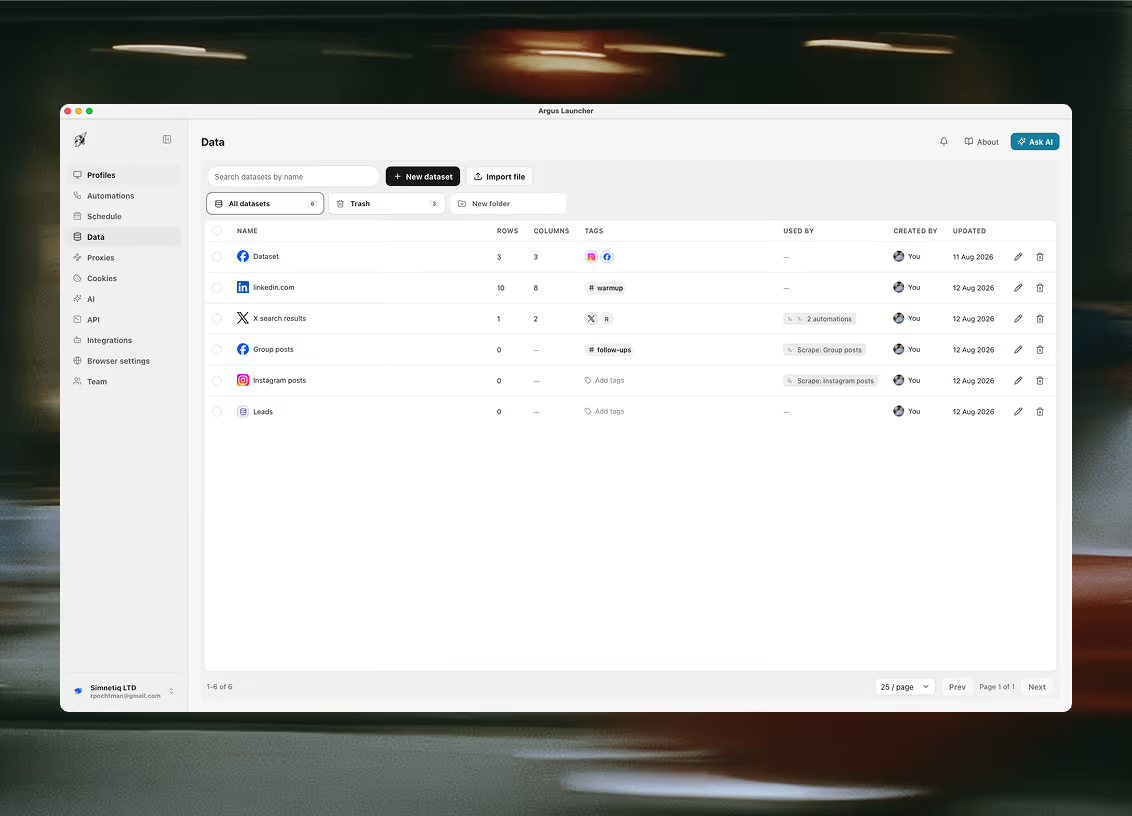
Columns carry a type, and the type is what the grid honours: text and long text, number, checkbox, date and date-time, a URL, an email, a phone number, a select with coloured options, and tags. A row number and a created-at are computed rather than stored, so nothing you have to keep in step by hand.
Three more hold a workspace item rather than a value — a profile, an automation or a proxy — and they store its id, so the cell still points at the same thing after somebody renames it. A column can also hold an automation parameter, which is how a table feeds the workflow that reads it.
Folders file datasets as the list grows, and a deleted one waits in Trash rather than going straight out.
A deleted dataset waits in Trash for thirty days and is then purged. Restore it from there, or empty the Trash yourself if you would rather not wait.
Columns and their types
Every column has a type, and the type is what the grid honours — the editor you get in a cell, how the column sorts, and what a value has to look like before it is accepted. Seventeen to choose from:
- Text
text - Long text
longText - Number
number - Stored as a real number, so sorting and ranges are numeric.
- Checkbox
checkbox - Date
date - Stored as YYYY-MM-DD.
- Date and time
datetime - Stored as a full UTC timestamp.
- URL
url - Email
email - Phone
phone - Status (one choice)
select - One coloured chip per row, from a list you define.
- Tags (many choices)
tags - Any number of chips per row, from a list you define.
- Created at
createdAt - Read from the row itself. Not editable.
- Row number
rowNumber - The row’s position on the page. Not editable.
- Automation parameter
parameter - Holds a reference like {{vars.email}} for automations to resolve.
- Profile
profile - Holds one of the workspace’s profiles; a cell picks it from the list.
- Automation
automation - Holds one of the workspace’s automations, picked from the list.
- Proxy
proxy - Holds one of the workspace’s proxies, picked from the list.
Created at and Row number are computed rather than stored — they are read from the row itself, so there is nothing to keep in step by hand and nothing to edit.
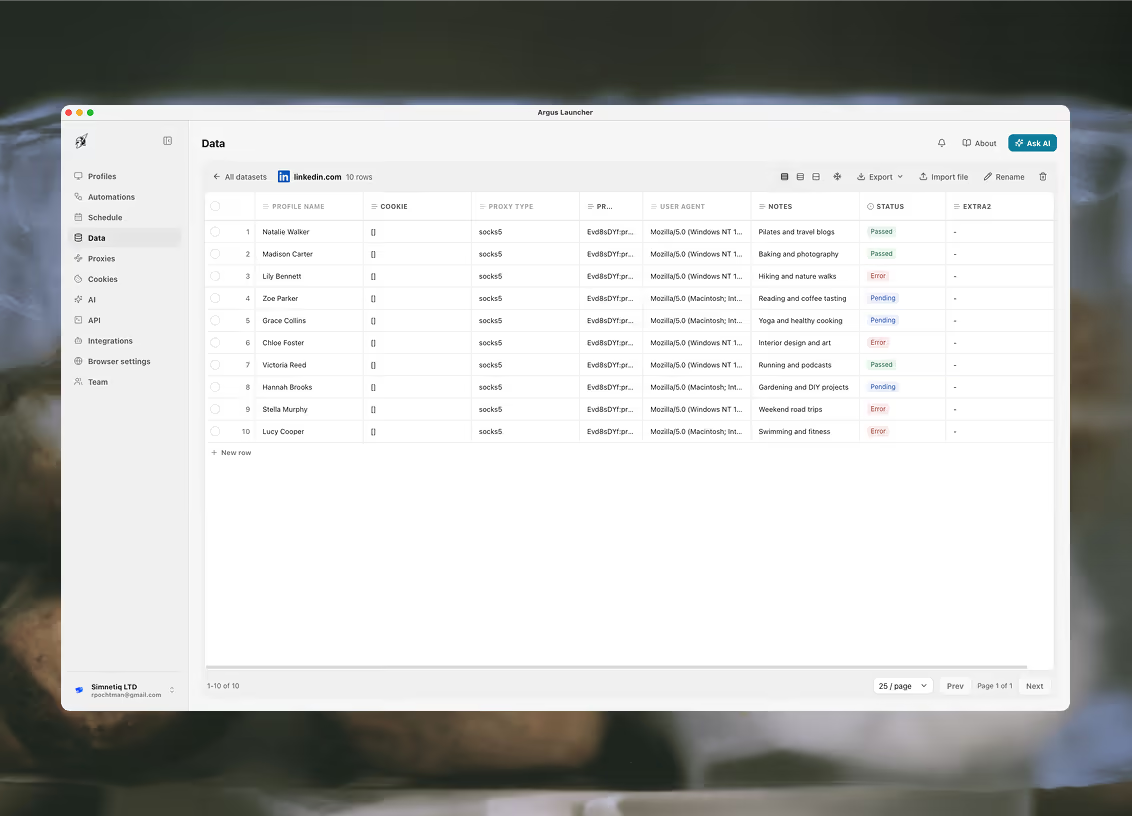
Automation parameter is the one worth stopping on. A cell in that column holds a reference rather than a value — {{vars.email}}, exactly as an automation writes it — and the editor offers every parameter any automation in the workspace declares, so you are picking from a real list rather than typing a name and hoping. That is the difference between a dataset that reports what happened and a dataset that is a work list: a loadRows step reads the column back, and each row becomes the input to one pass of tomorrow’s run.
How rows get in
Most rows arrive on their own. The Scrapers tab is the shortest route: pick a prebuilt collector, fill in its form, and its rows land in a new table of their own — no browser window opens and no automation slot is spent. An automation running on a profile is the other way, and the general one: it writes what it extracted straight into a dataset, and the save rows and load rows steps let one automation hand a table to the next — collect today, act on it tomorrow. A run scraper step joins the two, running a collector from inside a workflow — and it is the one route that can file into a table you name rather than a new one each time, so a scrape on a schedule grows a single table instead of leaving one behind every night.
Which table a scraper fills is a choice only the runScraper step gets to make. Run from the Scrapers tab, from the assistant or over the API, a collection always mints a table of its own, named after the search and the minute. A step can instead name one table and file every run into it — created with that scraper’s columns if it is not there yet, appended to after that, or updated in place on a column you match on. A nightly scrape then grows one table you can open on Monday, rather than seven.
Import file takes CSV, JSON, TXT or XLSX, and either builds a dataset from the file's own headers or appends into one that already exists, merging any columns the file brought with it.
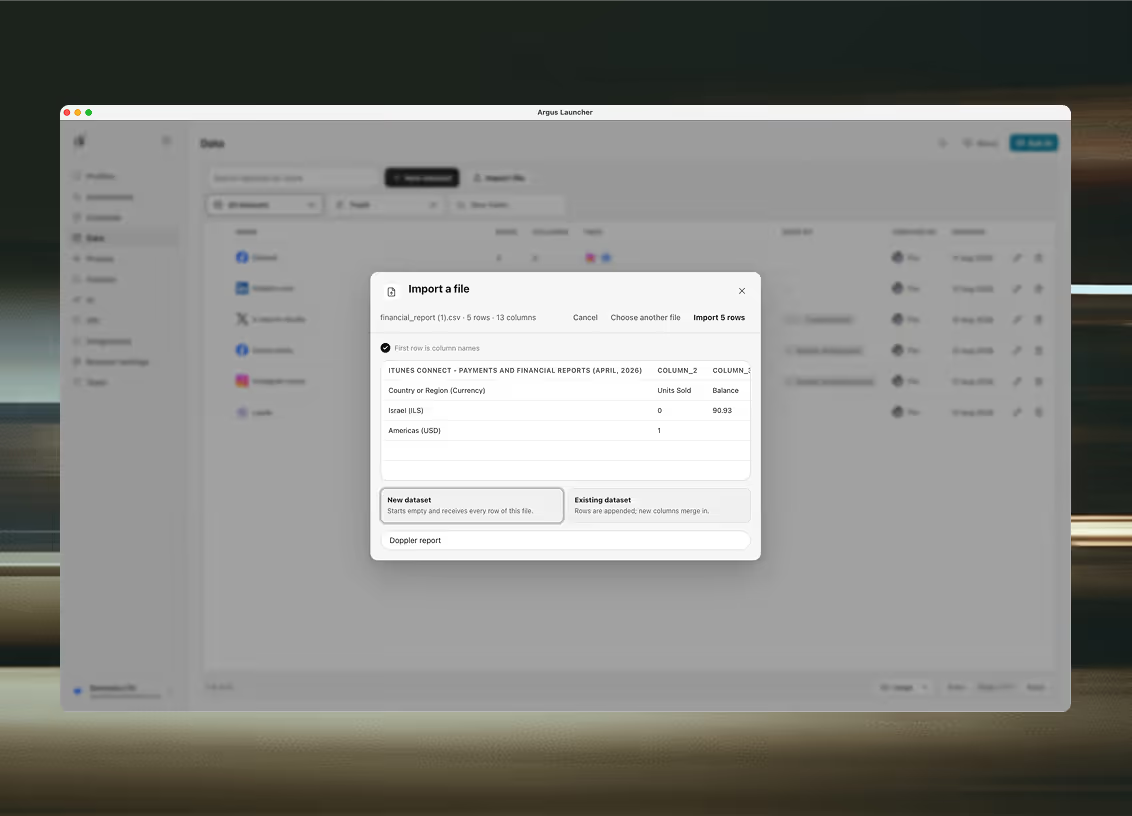
The import asks one question, and it is the useful one. New dataset starts empty and receives every row of the file, taking its columns from the file’s own header row. Existing dataset appends into a table you already have, and any column the file brought that the table does not have merges in rather than being dropped.
The assistant is the fourth way, and often the fastest. Ask it for a table by name and it will read rows, filter and count them, add or correct them, or clear out duplicates. Anything bulk or destructive raises an approval card before it runs, so a request that turns out to mean four thousand rows asks you first.
Working the rows
Click a cell to edit it in place; each column type brings its own editor. Add rows and columns from the grid, filter and sort, tick rows to delete a batch, and freeze the first column when the table is wider than the window. Export gives you CSV or JSON of the whole thing.
Rows are paged straight from the database in insertion order, so what you see is the dataset itself rather than a page of it pretending to be sorted. A table of fifty thousand rows opens as fast as one of fifty.
Filtering and sorting happen on the server for the same reason, over the whole table rather than the page in front of you. A third press on a column header clears the sort and hands the table back to its stored order, which is why the order is worth having: it is the one arrangement that is always the truth about the dataset.
The ceilings, since they are the kind of number worth knowing before you build on them: a hundred thousand rows in a dataset, two hundred datasets in a workspace, sixty columns in a table, and 64 KiB in any single row.
The built-in destination
Your datasets are one of the destinations the database steps can write to. saveRows and loadRows point at a table of your own exactly as they point at Supabase, a Google Sheet or a CSV on disk — you pick Argus Datasets and name the table. There is no credential to store and nothing to connect, because it is already your workspace.
Two things it does that most of its neighbours cannot. It upserts by filter: give saveRows a column to match on and every row whose value matches is merged over, with no unique constraint needed or implied. And a mapped key with no matching column is an addition rather than an error, so a run that starts returning one more field does not fail — where Supabase refuses, because adding a column there is a schema change on a database Argus is a guest in.
It is never the default destination, deliberately. A saveRows step has to name it, so nothing you wrote against your own database quietly starts filling a dataset instead. The full catalogue of the others is on databases and files.
Datasets are on the local API, and the whole tab is reachable from it: create one, replace its declared columns, append rows, rewrite or delete them by id, query them with filters and aggregates, and move them through Trash. Every one of those carries an agent tool as well, so the in-app assistant and your own code drive the same table the same way. Reads are paged rather than dumped — a query scans a bounded slice and tells you when the dataset was larger, so a partial answer is never handed over as the whole truth.
Reading a page without a browser
The reach step fetches a page without opening one. It picks a channel from the URL, or you name one:
YouTube, Reddit and RSS answer structured rows — one per video, post or item — while web answers the page as markdown. The answer lands in a variable you name, and a saveRows step set to write one row per item is what turns it into a table. Two steps, no browser, no profile.
Everything reach fetches leaves from the launcher’s own connection — not the profile’s proxy, and not its cookies. That is what makes it fast and cheap, and it is also its limit: a login-gated page needs a real browser step, running as the identity that is signed in.
Reach sits with the other data steps on reading and holding data, beside the two that move rows in and out.
Give the results somewhere to land
The Data tab is in the launcher. A dataset is worth the most once something is filling it, so the automation usually comes first — and the calendar after that.