Reference
Automation
An automation is a tree of steps run against one profile — through its proxy, with its cookies, in its browser when a step needs one. Thirty-three step types, and no scripting language to learn.
On this page
What an automation is
A tree of steps, run top to bottom against one profile. The steps that touch the page run inside that profile's own browser session — its proxy, its cookies, the fingerprint you built — so a site sees the identity rather than an automation harness bolted to it.
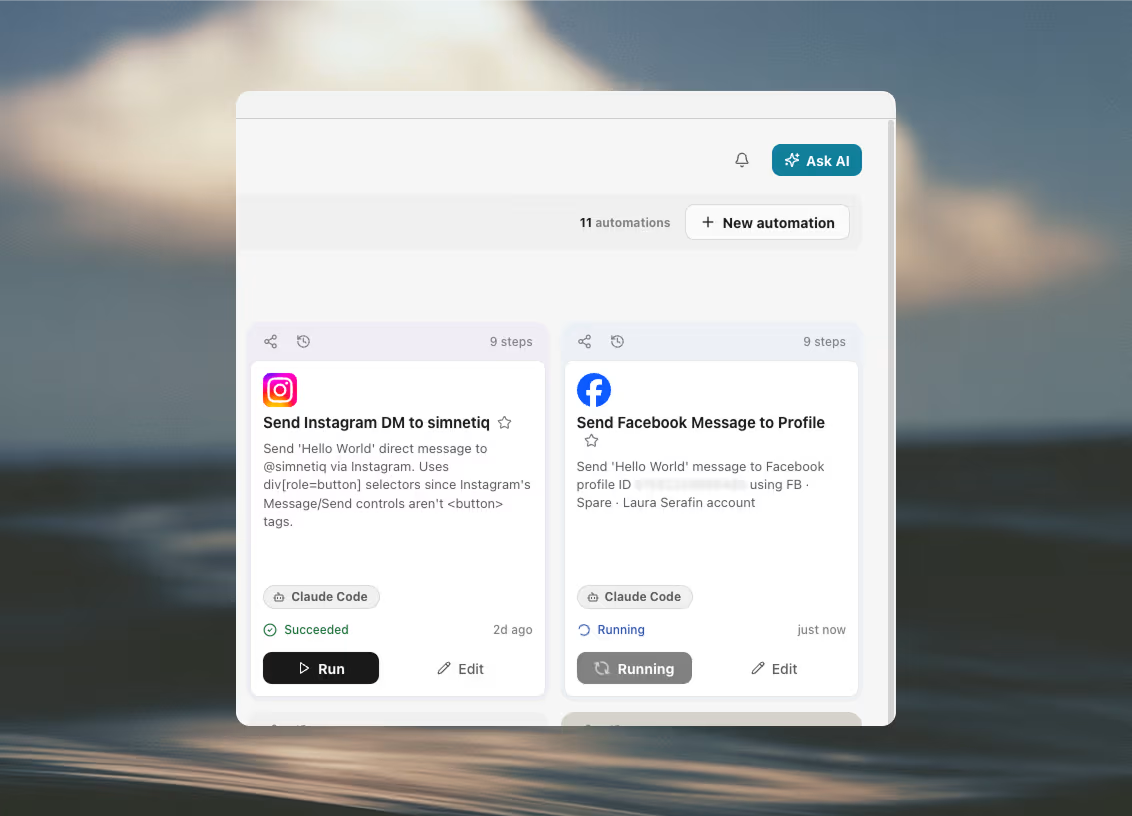
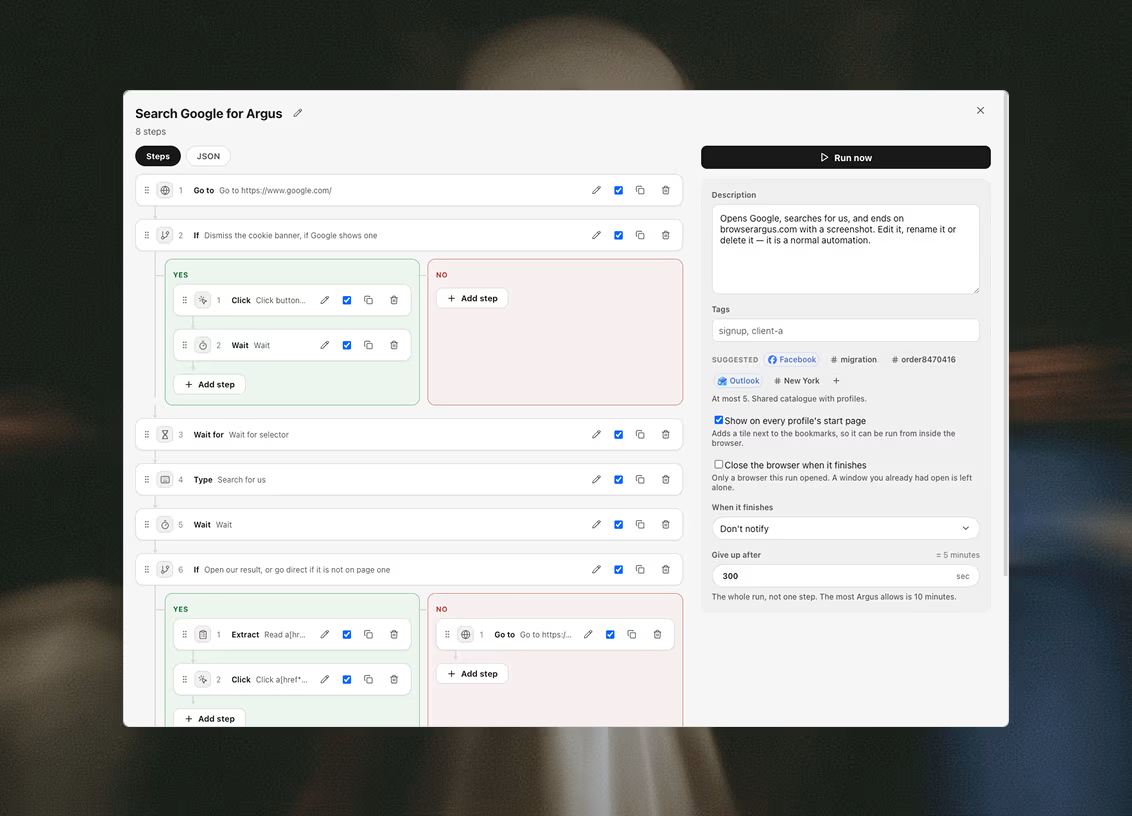
Steps are built in the launcher on a canvas — each step a card, branches drawn as lanes, loops as groups you drop steps into — or handed over the API as JSON. Same tree either way: the canvas is only where the program is drawn, and execution order never follows where a card was dragged.
Either way the tree is validated before anything is stored, and a rejection names the exact path that failed rather than saying the shape is wrong.
Some steps deliberately run from the launcher and not from the page — an HTTP request, a model call, a notification. Those do not use the profile's proxy or cookies, and each says so on its own card.
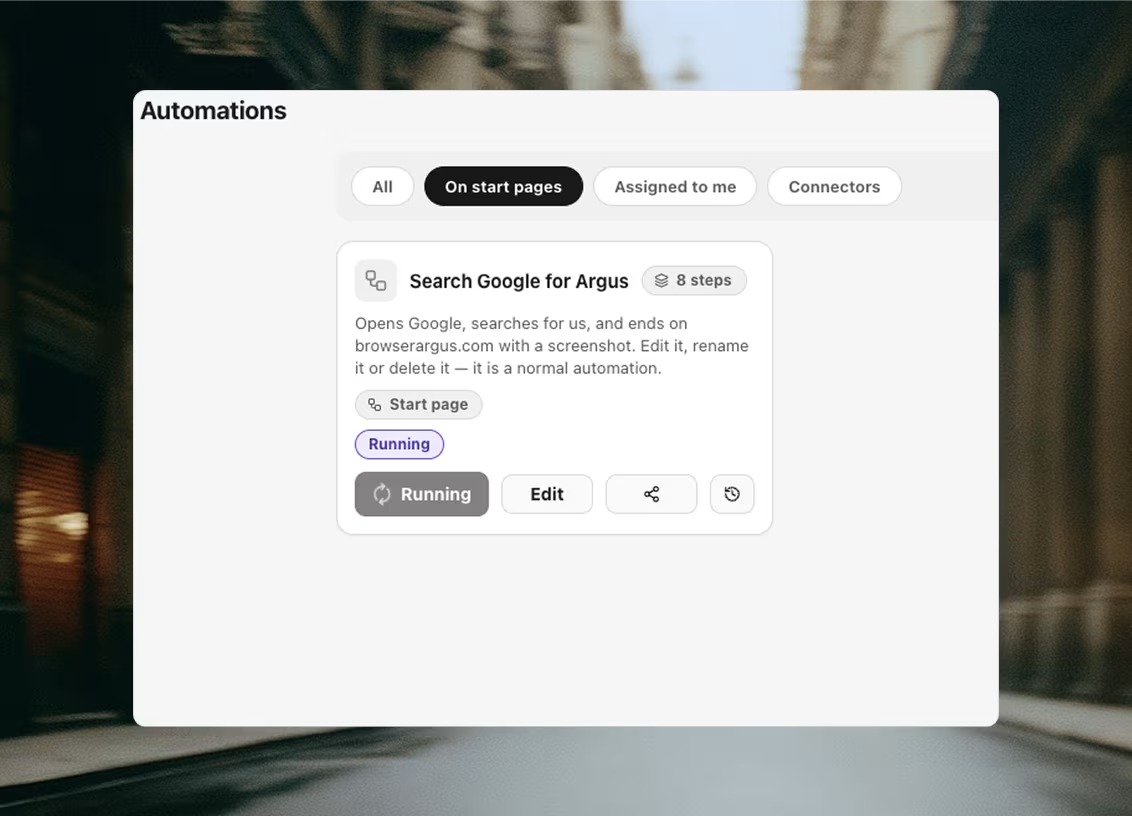
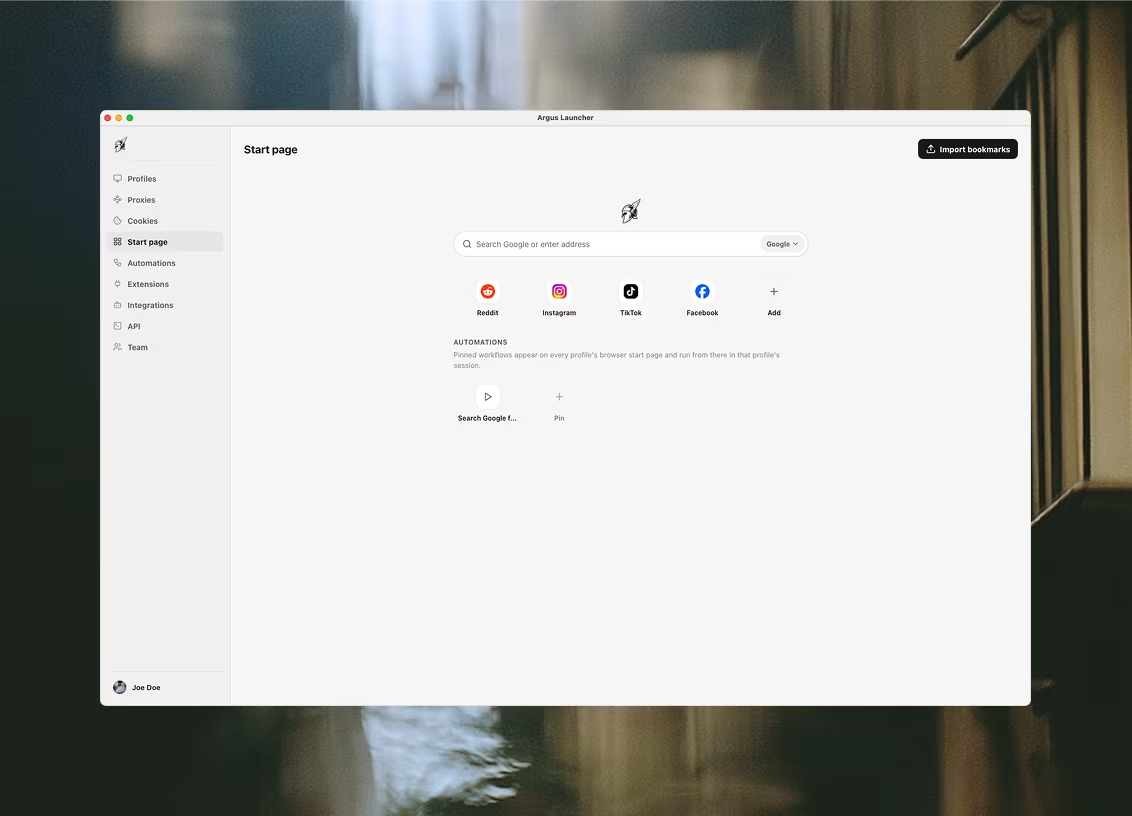
An automation can also be pinned, from its editor, to every profile's browser start page — a tile next to the bookmarks, so it can be run from inside the browser.
The 33 step types
Every field below is read from the schema Argus itself serves, so this is the vocabulary an agent gets when it calls argus_automation_schema.
Driving the page
The eight that touch the browser. Each one runs inside the profile's own session, so a site sees the identity you built rather than an automation harness — clicks and keystrokes arrive as real input events at a real coordinate, not as a script calling click() on an element. Press a key is for the keys a form reacts to but nobody types into a field: Tab to move on, Escape to dismiss, an arrow to walk a list. Solve captcha is the one exception worth knowing about, and only halfway: it reads the challenge and injects the answer in the page, but buys the answer from the launcher, so the provider never sees the profile's proxy or its cookies.
Go to
gotoGo to {url}
- url
- text · required
- waitUntil
- select · one of load | domcontentloaded
Wait for
waitForWait for {for}
- for
- select · required · one of selector | selectorGone | url | text
- selector
- text
- url
- text
- text
- text
Click
clickClick {selector}
- selector
- text · required
- nth
- number
Type
typeType into {selector}
- selector
- text · required
- text
- text · required
- clear
- boolean
- delayMs
- number
- pressEnter
- boolean
Press a key
pressPress {key}
- key
- text · required
- selector
- text
A real key event, the way Type sends one. This is for the keys a form reacts to but nobody types into a field: Tab to move on, Escape to dismiss a dialog, ArrowDown to walk a suggestion list. Type already presses Enter for you, so reach for this when the key is anything else. Leave the selector empty to send the key wherever the page's focus already is.
Scroll
scrollScroll to {to}
- to
- select · required · one of bottom | top | selector
- selector
- text
Screenshot
screenshotScreenshot
- selector
- text
- fullPage
- boolean
Solve captcha
solveCaptchaSolve the captcha on the page
- connector
- connector · captcha connector
- challenge
- select · one of auto | recaptchaV2 | recaptchaV3 | hcaptcha
- sitekey
- text
- action
- text
- minScore
- number
- fireCallback
- boolean
- waitForPage
- boolean
- into
- text
The page's URL and its site key go to your provider from the launcher, not from the page -- the solve does not travel through the profile's proxy, and nothing else about the page leaves the machine. Injecting a token is not the same as passing the check: whether the site accepts it is the site's business, so follow this with a Wait for or an AI check.
Reading and holding data
Pull something out of the page, compute with it, or fetch it from somewhere else. Anything stored lands in a variable you name, and every later step can interpolate it. Save cookies captures the session itself, back into the profile's cookie set — and the three database steps carry a run's results out to a sheet, a table or a file, read a work list back in, or clear out rows a filter names — the last of those has no undo, and refuses to run at all without a filter, because an empty one would mean every row in the table. Three steps here reach the network without driving a page, and which one you want is decided by whose address the request should leave from: fetch page goes out through the profile's proxy with a real browser's TLS fingerprint, which is what lets a whole collector run in seconds with no window open at all; reach arrives over the launcher's own connection instead, so it is the right one for a public page and the wrong one for anything that knows you; and HTTP request is the plain call you make to your own API. Run scraper is the fourth and asks a different question: not where the data is, but which service it is on — it runs one of the prebuilt collectors from the Scrapers tab, opening no window and spending none of the plan's automation slots, and then asks the one thing the tab never has to: where the rows go. A new table each run is the default and is exactly what the Scrapers tab does; pointed instead at a table you name, it creates that table with the scraper's own columns if it is not there yet, and every run after appends into it — or updates the row in place, where a column you nominate matches. Either way it hands the next step an object rather than a bare name: the table, its id and how many rows arrived, so the step after it can load what was just collected. The three mail steps run on the profile's own mailboxes, read and written through that profile's proxy, so the provider sees the identity's exit and not your machine's. Two of them close the loop a signup opens: wait for the confirmation message, then take the link out of it and open it. The third sends — one message, from one mailbox, to one person, and every send is booked in the workspace's ledger before it leaves. It is refused if that mailbox has spent its daily cap, if it is still warming up, if the address is on the workspace's suppression list, or if this workflow already emailed it inside its repeat guard, and the refusal is recorded rather than dropped. Send broadcast is the other half of that pair, and the difference is the list rather than the wiring: it hands the message to an email service provider over your own key, from a domain you verified with them, and it is for people who asked to hear from you — every provider's acceptable-use policy prohibits cold outreach and scraped lists, and the penalty is the account rather than a bounce, so anything cold belongs on the mailbox step above. It shares the same ledger, the same suppression list and the same repeat guard, and adds a one-click unsubscribe header to every message. Verify email is the one that belongs before either of them: it asks a verification service whether there is a mailbox behind an address at all, and answers in four words of which only one means send — a bounced list is the fastest way to burn a sending domain, and a domain's reputation cannot be turned back. The two script steps are the escape hatch: run script runs your JavaScript inside the page, and run Node script runs Node on your own machine, outside the browser entirely.
Extract
extractRead {selector} into {into}
- selector
- text · required
- what
- select · one of text | html | attr | value
- attr
- text
- all
- boolean
- into
- text · required
Run script
evaluateRun script
- script
- textarea · required
- args
- keyvalue
- into
- text
- secretInto
- boolean
Run Node script
nodeScriptno browser neededRun Node script
- code
- textarea · required
- args
- keyvalue
- into
- text
Runs on this machine as a Node process, with the launcher's own access to your files and network -- not in the profile's browser, and not through its proxy. Node's built-in modules only (fs, crypto, fetch, zlib and the rest); npm packages are not installed. An automation created or changed over the API or MCP that contains this step asks you to approve it first.
Set variable
setVarno browser neededSet {name}
- name
- text · required
- value
- text · required
- secretInto
- boolean
HTTP request
httpRequestno browser needed{method} {url}
- method
- select · one of GET | POST
- url
- text · required
- headers
- keyvalue
- body
- textarea
- into
- text
Sent from the launcher, not from the page -- it does not use the profile's proxy or cookies.
Fetch page
fetchPageno browser neededFetch {url} into {into}
- method
- select · one of GET | POST
- url
- text · required
- headers
- keyvalue
- body
- textarea
- query
- text
- collect
- textarea
- selector
- text
- fields
- keyvalue
- adaptive
- select · one of yes | no
- into
- text · required
Fetched by Scrapling through the profile's proxy, with no browser window. Leave the row selector and the list config empty to store the raw page.
Reach
reachno browser neededReach {url} into {into}
- channel
- select · one of auto | web | youtube | reddit | rss
- url
- text · required
- into
- text · required
Reads the page WITHOUT a browser, through Agent Reach's channels (Jina Reader, yt-dlp, RSS) -- from the launcher's own connection, not the profile's proxy or cookies. Login-gated pages need a browser step instead.
Run scraper
runScraperno browser neededRun the {scraper} scraper into {into}
- scraper
- scraper · required
- input
- scraperInput
- mode
- select · one of new | table
- target
- remote · required
- matchOn
- remote
- into
- text · required
Runs one of the prebuilt scrapers and files its rows into an Argus table, exactly as the Scrapers tab does — no browser window opens, and it costs no automation slot. Left on "new" it makes a fresh table per run; pointed at a table it appends to, or updates, the one you name — and refuses an existing one whose columns are not mostly this scraper's.
Save cookies
saveCookiesSave cookies to the Launcher {domain}
- domain
- text
With a filter set, the live cookie set is REPLACED by exactly this filtered subset -- running this step again with a narrower filter after a full sync discards every other domain's cookies from that set.
Save to database
saveRowsno browser neededSave to {target}
- connector
- connector · data connector
- target
- remote · required
- rows
- select · required · one of one | many | each
- items
- text
- mapping
- mapping
- matchOn
- remote
- extraColumns
- select · one of fail | ignore | add
- into
- text
Sent from the launcher, not from the page -- it does not use the profile's proxy or cookies. Values are converted to the column's type before they are sent, and a value that cannot be converted fails the step rather than being stored wrong.
Load from database
loadRowsno browser neededLoad {target} into {into}
- connector
- connector · data connector
- target
- remote · required
- filter
- keyvalue
- limit
- number
- into
- text · required
Sent from the launcher, not from the page -- it does not use the profile's proxy or cookies. Only equality filters, and at most 1000 rows: this is a step that feeds a loop, not a query language.
Delete rows
deleteRowsno browser neededDelete from {target}
- connector
- connector · data connector
- target
- remote · required
- filter
- keyvalue · required
- limit
- number
- into
- text
THERE IS NO UNDO. The filter is required and an empty one is refused rather than treated as "everything" -- the row that deletes a whole table must not be one slip away from the row that deletes three. Same equality-only grammar as Load from database, and the same 1000-row ceiling. Not every service can do this: where a connector cannot, the step says so instead of the service answering with its own error. Notion has no hard delete, so a page there is archived, which is what its own trash does. Sent from the launcher, not from the page -- it does not use the profile's proxy or cookies.
Wait for email
waitForEmailno browser neededWait for mail matching {subjectPattern}
- account
- mailbox
- folders
- select · one of inboxSpam | inbox | all
- fromPattern
- text
- subjectPattern
- text
- bodyPattern
- text
- since
- select · one of runStart | stepStart | any
- codePattern
- text
- markSeen
- boolean
- into
- text · required
Read from the launcher through the mailbox's own proxy, so the provider sees the profile's exit rather than this machine's. The message body is deliberately NOT stored in the variable: a run record is readable by the whole workspace and is flushed to the cloud, so only a bounded summary travels. Give the step longer with its own timeout if a sender is slow; it waits three minutes by default.
Link from email
extractEmailLinkno browser neededTake a link from {message} into {into}
- message
- text · required
- pattern
- text
- index
- number
- into
- text · required
Works on the links Wait for email already pulled out of the message, so it opens no connection and cannot fail after the wait succeeded. Tracking redirectors are left as they are -- following one to tidy the address would discard the token the link carries, and would fetch it from this machine rather than the profile.
Send email
sendEmailno browser neededSend "{subject}" to {to}
- to
- text · required
- subject
- text · required
- body
- textarea · required
- pool
- mailPool
- account
- mailbox
- dedupeScope
- text
- dedupeDays
- number
- jitterSeconds
- number
- into
- text · required
Governed: every send is booked in the workspace's ledger BEFORE it leaves, and refused if the mailbox has spent its daily cap, if it is still warming up, if the address is on the suppression list, or if this scope already emailed it inside the repeat guard. A refusal is recorded rather than dropped. Mail leaves through the mailbox's own proxy, so the provider sees the identity's exit and not this machine's. The launcher window must be open: the caps and the suppression list live in the workspace, and sending unchecked is worse than not sending.
Send broadcast
sendBroadcastno browser neededBroadcast "{subject}" to {to}
- connector
- connector · broadcast connector
- to
- text · required
- subject
- text · required
- body
- textarea · required
- html
- textarea
- dedupeScope
- text
- dedupeDays
- number
- campaign
- text
- campaignStep
- number
- into
- text · required
For people who OPTED IN. Every email service provider's acceptable-use policy -- Resend's, Postmark's, SendGrid's -- prohibits cold outreach, purchased lists and scraped contact data, and the penalty is the account rather than a bounce. Cold mail goes out over the Send email step and the workspace's own mailboxes instead. Governed the same way that step is: every send is booked in the workspace's ledger BEFORE it leaves, and refused if the address is on the suppression list, if this scope already emailed it inside the repeat guard, or if the connector has spent its daily limit. A refusal is recorded rather than dropped. RFC 8058 unsubscribe headers are added to every message, pointing at the connector's reply-to. The launcher window must be open: the suppression list lives in the workspace, and sending unchecked is worse than not sending.
Verify email
verifyEmailno browser neededCheck {email} is real
- connector
- connector · verify connector
- text · required
- into
- text · required
Four verdicts, and only one of them means send. `deliverable` is a mailbox that answered. `undeliverable` covers an address that does not exist AND one that must not be mailed -- a spam trap, a burner, a known complainer. `risky` is a catch-all domain, which accepts everything including mail for boxes that are not there, so nobody can tell; leaving these out is the safe default. `unknown` means the check did not complete, and a vocabulary this build does not recognise lands here rather than on `deliverable` -- a verifier that guesses yes is worse than none. The check leaves from the launcher's own connection, never a profile's proxy: both services take the key in the query string. Bouncing a scraped list is the fastest way to burn a sending domain, and a domain's reputation cannot be turned back.
Asking a model
Three steps that hand work to a model: an open question whose answer you keep, a yes-or-no check you branch on, and an agent that plans and calls tools — HTTP, code in the page, your data connectors, messages, other automations, MCP servers — until the task is done. All run from the launcher, against whichever AI connector you point them at.
Ask AI
aiPromptAsk AI into {into}
- provider
- connector · ai connector
- prompt
- textarea · required
- context
- select · one of none | pageText | selector
- selector
- text
- format
- select · one of text | json
- maxTokens
- number
- into
- text · required
Sent from the launcher, not from the page -- it does not use the profile's proxy or cookies. Page text is truncated before it is sent.
AI check
aiCheckAI check: {question}
- provider
- connector · ai connector
- question
- textarea · required
- context
- select · one of none | pageText | selector
- selector
- text
- into
- text
- onFalse
- select · one of continue | fail
The model is asked for one word and nothing else. Anything it says that is not yes or no fails the step rather than being guessed at.
AI Agent
aiAgentAgent into {into}
- provider
- connector · ai connector
- model
- model
- prompt
- textarea · required
- memory
- select · one of none | window
- memoryWindow
- number
- maxIterations
- number
- tools
- tools
- into
- text · required
Calls leave from the launcher, not the page -- no profile proxy or cookies. Tools run with the same limits as their standalone steps, and an approval tool gates every call behind a yes/no over Telegram.
Control flow and output
Branch, repeat, pause, compose, and tell someone. Run automation calls another automation's steps inline, so a flow you use everywhere is written once. A notify step is how a run that finished at three in the morning reaches you.
If
ifIf {condition.left} {condition.op}
- condition
- condition · required
- then
- steps
- else
- steps
Loop
loopno browser neededLoop {mode}
- mode
- select · required · one of times | forEach
- times
- number
- items
- text
- maxIterations
- number
- body
- steps
Wait
waitno browser neededWait
- ms
- number
- minMs
- number
- maxMs
- number
Send message
notifyno browser neededSend message
- connector
- connector · message connector
- message
- textarea · required
- subject
- text
Sent from the launcher, not from the page -- it does not use the profile's proxy or cookies.
Run automation
callAutomationno browser neededRun automation {automationId}
- automationId
- automation · required
Running a scraper as a step
One step in the data family is a whole other part of the app folded into the tree. Run scraper takes one of the 29 prebuilt collectors from the Scrapers catalogue and runs it from inside a workflow — the same code the Scrapers tab runs, so a collection started by a step and one started by hand file identical rows into identically shaped tables. No browser window opens for it, and the collector is not an automation, so it spends none of your plan's automation slots.
Search & SEO
Google Keyword Ideas · YouTube Keyword Ideas · Bing Keyword Ideas · Amazon Keyword Ideas · Google Trending Now · YouTube Search Results · Google Search Results · Google Trends · YouTube Transcripts
Places
Social
Instagram Profiles · Instagram Posts · Instagram Followers · LinkedIn Profiles · LinkedIn Companies · LinkedIn Company Posts · LinkedIn Posts · LinkedIn Post Comments · TikTok Profiles · TikTok Profile Videos · TikTok Videos · X Profiles · X Posts · X Post Lookup
Commerce
The Add step panel lists them grouped by service, one row per collector, rather than as a single generic entry, so the collector is chosen before the step exists and the step arrives showing that scraper's own form — its real parameters, the same ones the tab asks for, not an untyped bag of keys and values. Anything left empty falls back to what was last typed into that scraper. There is still one generic row for the case the list cannot cover: a step whose scraper is a {{vars.x}} template decided while the run is going.
Then it asks the question the Scrapers tab never has to: where the rows go. A new table each run is the default, and is exactly what the tab does — named after the search and the minute, filed in a folder named after the scraper. Point it at a table instead and you name one: it is created, with that scraper's own columns, if it is not there yet, and every run after that appends into it — or updates the row in place, if you name a column to match on. That second mode is what lets a scrape on a schedule accumulate into one table rather than leave a fresh one behind every night.
Either way the step hands the next one an object rather than a bare name: the table, its id, and how many rows arrived. Point a following loadRows at {{vars.<name>.table}} and the automation reads back what it has just collected; branch on {{vars.<name>.rows}} to skip the rest of the run when nothing matched.
Variables and conditions
Any field marked as interpolated substitutes templates before the step runs: {{vars.name}} for something an earlier step stored, {{profile.email}} and {{profile.password}} for the profile's own saved credentials, and {{loop.item}} inside a loop.
One field is deliberately excluded. A Run script step never interpolates its script — templates are not substituted into code, so a value that happens to contain a quote cannot rewrite what runs.
Conditions are not an expression language, on purpose. One interpolated left side, one of five comparators, and one literal right side — enough to branch on what a page says, and too little to become a language nobody can read six months later.
Parameters
An automation can declare parameters — the inputs it asks for before it runs. A workflow that searches Dortmund and one that searches Essen should be one automation with a city parameter, not two copies of twelve steps.
Every parameter is readable from any interpolated field as a variable. A value can come from three layers — the automation's own default, under the profile's saved value, under whatever the run dialog or an agent supplies for that run — and the most specific one wins.
Secret parameters are masked in the interface and redacted out of the run record. List parameters become real arrays, so one can feed a loop's items directly.
Schedules
An automation can carry a schedule: every N minutes (5 to 1440), daily at a wall-clock time, or weekly on the days you pick — against a list of profiles it runs on. No cron strings; the modal, the card badge and an agent authoring over MCP all read and write the same small shape.
The schedule fires while the launcher is running. It is part of the automation itself, so creating or changing it over the API is the same create and update call.
Runs and notifications
Every run is recorded: which profile, which steps ran, per-step timing, and the verdict — succeeded, finished with errors, failed, or cancelled. A partial run did every step it could and tells you which one it could not, which is a different thing from a failure.
Starting a run returns as soon as it is registered; it continues in the background and lands in the history, which an agent reads back with the runs tool.
When a run finishes — at three in the morning, on a schedule, or started by an agent — Argus can send the verdict to Telegram: what ran, on which profile, and whether it succeeded. One bot serves the whole workspace, but every message is personal: you link your own chat once, then subscribe per automation to every run or failures only. Your subscriptions never ring a teammate's phone.
Automations can also notify through any messaging connector when they finish, separately from the notify step — a run that fails halfway still tells someone, even though the step that would have said so never ran.
Start from a recipe
The field names above are not guessable, and a first automation written against them from scratch is a slow afternoon. 4 of them are already written: working workflows across 2 starter packs, each arriving with the tables it reads and writes and a project holding them together. Load one from the launcher, read the steps, and change whatever does not fit — they are ordinary rows from the moment they land.
Product launch
The whole libraryAnnounce what you built from an account that is yours, on a site that has not heard of it, and keep the record of what was said where.
Outbound email
The whole libraryA two-touch sequence from your own mailboxes for people who did not ask to hear from you, a pass that checks the addresses and writes what each message opens with, and one table that is the state of the whole thing.
Prepare the outreach list
Each row costs one model call, and a verification check spends a credit on your own account if you have a verifier configured. Both are optional to set up; without a verifier the column simply stays empty.
One profile · Opens no page · The Outreach list table
Outreach touch 1
Pick your mailbox on the Send touch 1 step, or name a pool, and read the three copy parameters before the first run. Mail cannot be recalled.
One profile · Opens no page · The Outreach list table · 5 settings on the run
Outreach touch 2
Pick your mailbox and read the copy parameters. It will not mail a row the same day touch 1 did, but the spacing beyond that is how often you schedule the sequence.
One profile · Opens no page · The Outreach list table · 5 settings on the run
The whole library lists every recipe with its real step list, the tables it uses, and what it asks you for before it runs.
Authoring over the API
Automations can be written by hand in the launcher or created over the local API — which is what a coding agent does. Ask for the step vocabulary first; the field names are not guessable, and a tree that does not validate is refused.
/v1/automations/create{
"name": "Sign in",
"steps": [
{ "id": "s1", "type": "goto", "url": "https://example.com" },
{ "id": "s2", "type": "waitFor", "for": "selector", "selector": "h1" },
{ "id": "s3", "type": "extract", "selector": "h1", "what": "text", "into": "heading" }
]
}Creating, changing and deleting an automation needs a key with no folder scope, because automations are shared across every folder and have none of their own. A folder-scoped key may still list, read and run them.
Parameters and schedules ride the same calls — parameters and schedule are fields of create and update, validated exactly the way the editor validates them. Running one returns as soon as the run is registered — it continues in the background, lands in the run history, and a notify step or a Telegram subscription is how it reaches you when it is done.
Build one
The editor is in the launcher, under Automations. Connect a model and a messaging service first if you want the AI and notify steps.